Every window on the right display, at the right size.
A small menu bar app for macOS. Plug in a monitor, wake your Mac or open a new window — Perch puts it where your rules say, and leaves the windows you move by hand alone.
0.7 MB · macOS 14 or later · Apple silicon · What’s new
Why Perch
Window managers that restore a saved snapshot match windows by their exact titles. Editors and terminals change their titles all the time, and some apps — VSCode among them — reposition a new window a moment after opening it. The snapshot no longer matches, or gets overridden.
Perch works with rules instead: “VSCode windows go to the portrait monitor”, “this Chrome profile fills the laptop screen”. Rules keep matching however titles change, and Perch keeps re-applying them while an app is still settling its window.
What it does
Everything lives in the menu bar; there is no Dock icon.
Rules, not snapshots
App plus an optional title pattern → a display and a placement: an exact frame, the same share of another display, or fill the screen.
Display profiles
A rule set per combination of monitors. Displays are recognized by vendor, model and serial — not by their order.
Handles fidgety apps
New windows are placed as they appear and held in place for a moment, so apps that move their own windows end up where the rule says.
Monitors, sleep, Spaces
Rules are re-applied when displays come and go, after waking, and when you switch to a Space with windows Perch hasn’t reached yet.
One-click snapshot
Turn the current layout into rules, or pin just the active window. VSCode windows are matched by project and Chrome windows by profile, so the rules survive title changes.
Settings window & shortcuts
Edit rules, profiles and excluded apps in a window or in a plain JSON file. Global shortcuts for Apply Rules Now and Snapshot.
Rules at a glance
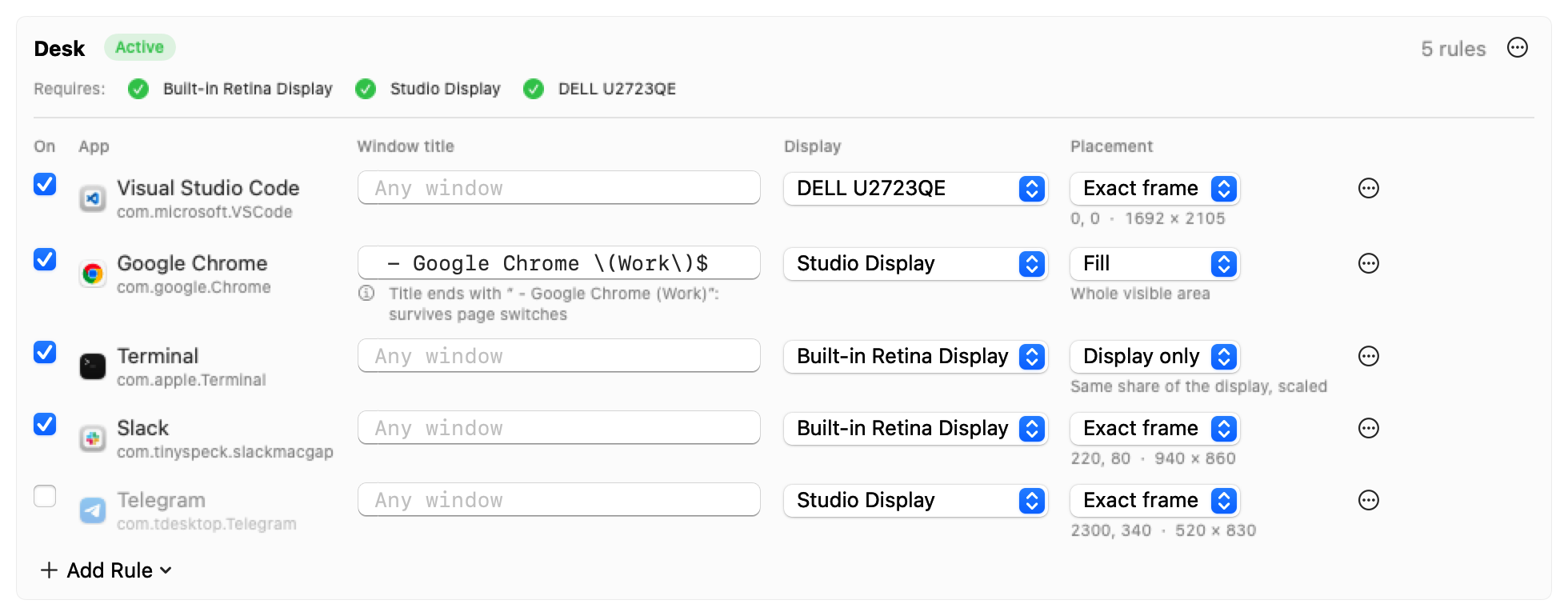
The settings window shows every rule of a profile and lets you change the display, the placement or the title pattern in place.
A display profile with rules for VSCode, Chrome, Terminal, Slack and Telegram.
When Perch moves windows
Perch only acts on these occasions. Any other time, a window you move stays where you put it.
Event
Windows affected
A window of an app with a rule appears
That window, held in place for 2 seconds while the app settles; small popups such as sign-in windows are left alone
Monitors change: plugged in, unplugged, wake from sleep
All windows
Apply Rules Now, from the menu or a shortcut
All windows
A rule is changed
Only the windows that rule matches
Switching to another Space
Windows Perch couldn’t reach before
Install
Download and unzip
Move Perch.app to your Applications folder before opening it.
Open it the first time
Perch isn’t notarized by Apple, so macOS blocks the first launch. Open it once, then go to System Settings → Privacy & Security and click Open Anyway. On macOS 14 you can instead Control-click the app and choose Open.
Allow Accessibility
Perch needs it to move windows: System Settings → Privacy & Security → Accessibility → turn on Perch. Perch notices the permission without a restart.
Make your first rules
Arrange your windows, then choose Snapshot Current Windows → Rules from the bird icon in the menu bar. Fine-tune them in Open Config… and turn on Launch at Login.
Updating: download the new version and replace the app. Your rules stay in ~/Library/Application Support/Perch, and the Accessibility permission carries over. To uninstall, quit Perch and delete the app and that folder.
Plain-text config
The settings window edits a human-readable JSON file, and Perch picks up changes you make to it by hand.
Rule for Active Window: saves where the focused window is now as a rule without touching other rules, from the menu or a global shortcut. The menu shows the app and title of that window below the item. An existing rule for that window is updated; a specific rule is placed before the app's broader ones so it takes effect.
Fixed
Popups such as browser sign-in windows are left alone instead of being stretched to the main window's frame: a new window that opens next to an existing window of the app and is less than half its area keeps the size and place the app gave it.
Rules per app with an optional window-title regex; the first matching rule wins.
Placement modes: exactFrame (relative to the display's visible area), displayOnly (scales position and size to the target display, so moving back and forth restores the frame) and fill.
Display profiles keyed by the set of connected displays, identified by vendor/model/serial; exact match first, then the most specific subset, with an empty profile as the catch-all.
New windows are placed when they appear and re-placed on every move/resize during a configurable enforcement window (default 2 s), so apps that reposition themselves (VSCode) end up where the rule says.
Rules are re-applied after display changes, including sleep and wake.
Windows on other Spaces are caught up when their Space becomes active.
Windows skipped because they were unreadable or minimized are re-checked after 2, 7 and 17 s.
Moves that leave the size off target (cross-display moves) are retried once.
Manual moves stick: config edits only touch windows whose rule changed.
Snapshot
Turns the current window layout into exactFrame rules for the current display set.
Apps with several windows get stable title patterns: the VSCode workspace, the Chrome profile suffix, or the exact title as a last resort.
Keeps existing rules that no visible window matches (e.g. windows on other Spaces).
Config
Human-readable JSON in ~/Library/Application Support/Perch/config.json, reloaded when it changes; parse errors are shown with the path of the offending value while the last valid config stays in effect.
Config window: view everything and edit rules (enable, title regex, display, mode, order, delete, pin to the current window position), profiles (create for current displays, rename, delete), timings, excluded apps and global shortcuts.
Excluded apps that Perch never moves and Snapshot skips.
Global shortcuts for Apply Rules Now and Snapshot, layout-independent.
App
Menu bar app with Apply Rules Now, Snapshot, Open Config, Displays, Launch at Login and About Perch (icon, version, description and a link to the website).
Accessibility permission check that picks up the grant without a restart.
App icon and a matching template menu bar icon.
Persisted log summary for every pass, e.g. applyAll (displays changed): 12 windows: 0 moved, 12 in place.
Build with make: app bundle, self-signed code signing (keeps the Accessibility grant across rebuilds), install to ~/Applications, encrypted backup and restore of the signing identity.
Website at https://realsweb.com/Perch with the download, install steps and this changelog (make site builds it).